How to Use WhatsApp on Two Phones and Manage Conversations Smarter with triochat.io
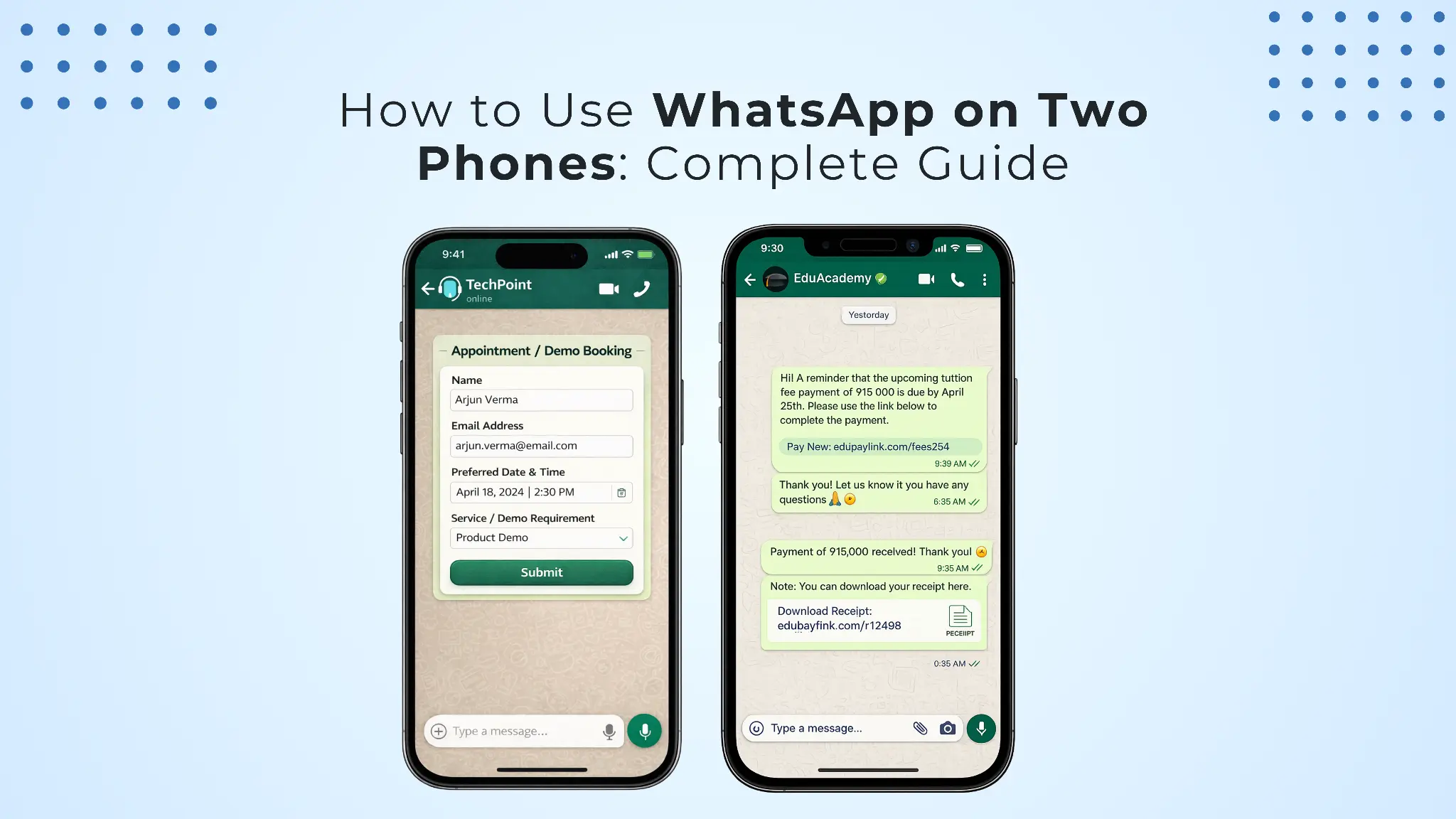
1. When One Phone Isn’t Enough Anymore
Most of us have experienced this. You leave your work phone on the desk, pick up your personal phone, and suddenly realize all your WhatsApp messages are sitting on the other device. Whether it’s a client asking for an update, a lead replying to your message, or a friend sending a plan for the evening, switching phones just to reply quickly becomes frustrating.
This situation is even more common now. Many people use two phones, one for personal use and one for work. Small business owners, sales teams, and customer support staff often depend on WhatsApp to communicate with customers throughout the day. When conversations are locked inside a single device, it slows everything down.
Fortunately, WhatsApp introduced a feature that solves this problem. With Companion Mode, you can now use the same WhatsApp account on multiple phones. In this guide, we’ll walk through how to use WhatsApp on two phones, why it’s useful, and how businesses can take it a step further with triochat.io to manage conversations more efficiently.
2. What is WhatsApp Companion Mode?
WhatsApp introduced Companion Mode in 2023 to allow one WhatsApp account to run on multiple devices, including additional phones. Earlier, you could only link WhatsApp Web or desktop apps, but now even a second smartphone can stay connected to the same account.
Once devices are linked, messages, media, and calls sync across all of them. The best part is that the secondary phone works independently. Even if your primary phone is offline or out of battery, you can still read and reply to chats.
Why this feature is useful
Here are a few practical benefits of using WhatsApp on two phones:
- Reply faster: Use whichever phone is closest to respond to messages.
- No downtime: If your primary phone dies, conversations continue on the second device.
- Better work-life balance: Keep personal and work phones separate while accessing the same chats.
- Convenient for teams: Businesses managing shared WhatsApp numbers can stay connected from multiple devices.
For individuals, it simply makes life easier. For businesses, however, managing customer conversations across devices can still get messy. That’s where tools like triochat.io come in to organize and scale WhatsApp communication.
3. How to Use WhatsApp on Two Phones (Step-by-Step)
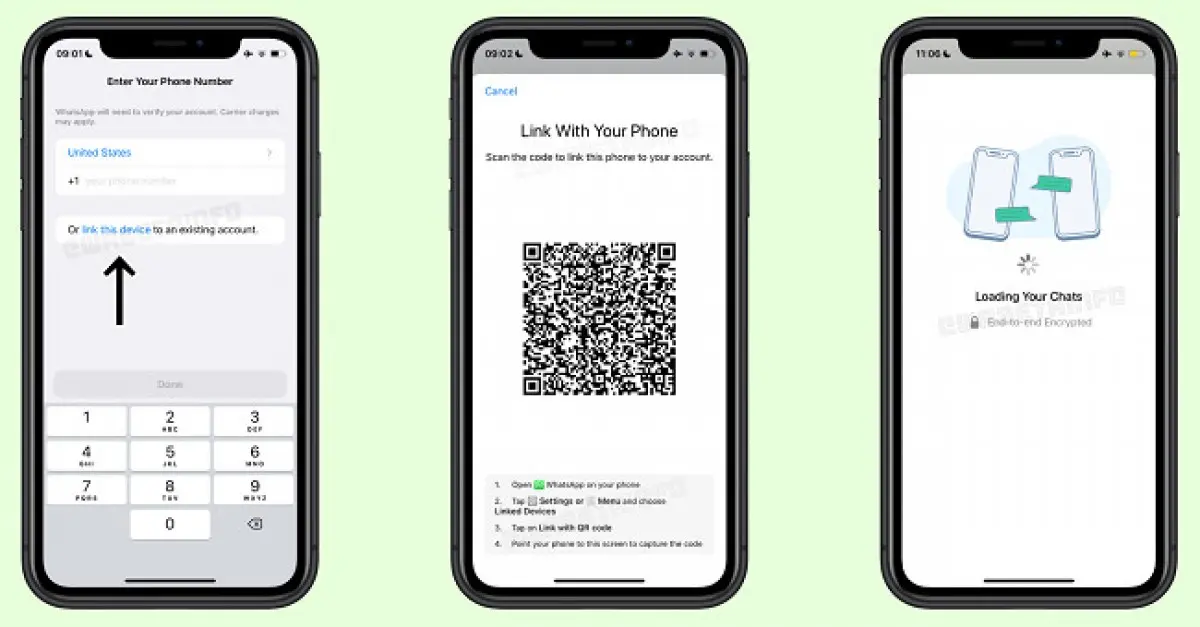
Setting up WhatsApp on a second phone is surprisingly simple. You don’t need another SIM card or complicated settings. The setup mainly involves linking the second phone to your primary device through a QR code.
Step-by-step setup
- Install WhatsApp Messenger on the second phone.
- Open the app and choose “Link to existing account.”
- A QR code will appear on the screen.
- On your primary phone, open WhatsApp.
- Go to Settings → Linked Devices → Link a Device.
- Scan the QR code from the second phone.
- Wait a few seconds while the chats sync.
Once the sync is complete, both phones will show the same conversations. You can send messages, share media, and receive calls from either device.
Things to keep in mind
- WhatsApp allows up to four linked devices besides the main phone.
- Messages remain end-to-end encrypted on every device.
- Only recent chat history is synced during setup.
- If the primary phone stays inactive for 14 days, linked devices may log out.
This setup works well for individuals. But if multiple team members need access to the same WhatsApp number, things quickly become complicated. Passing phones around is hardly a long-term solution.
4. The Real Problem: When WhatsApp Becomes a Business Inbox
Imagine running an online store or service business where customers message you constantly. One person handles inquiries in the morning, another manages support in the evening, and someone else follows up with leads. If all conversations are tied to a single phone, it becomes chaotic.
Messages get missed, replies get delayed, and sometimes two people reply to the same customer without realizing it.
A simple example:
You’re driving to a meeting while your phone keeps buzzing with customer queries. Your colleague sitting in the office could answer them instantly if they had access. But since WhatsApp is limited to devices instead of teams, those messages wait until you’re free.
This is where businesses start realizing that using WhatsApp on two phones solves only part of the problem.
Common challenges businesses face
- Customer messages piling up on one phone
- Team members unable to access chats simultaneously
- No way to assign conversations to specific staff
- Difficulty tracking leads and follow-ups
- Manual replies taking too much time
Businesses need more than multi-device access. They need a system.
5. The Smarter Solution: Manage WhatsApp Conversations with triochat.io
Using WhatsApp on two phones is helpful. But when conversations start increasing, businesses need tools that organize and automate communication.
This is where triochat.io changes the game.
Instead of depending on multiple phones, triochat.io turns WhatsApp into a shared team inbox. Everyone in your team can access conversations from their own system without needing the same physical device.
How triochat.io improves WhatsApp communication
- Shared team inbox: Multiple team members can reply to customers from the same WhatsApp number.
- Chat assignment: Assign conversations to specific team members so nothing gets missed.
- Automation & chatbots: Answer common questions instantly without manual replies.
- Broadcast messaging: Send updates, offers, or announcements to multiple customers at once.
- CRM integrations: Connect WhatsApp with tools like Shopify or CRM platforms.
Let’s say a customer messages your brand asking about product availability. Instead of waiting for someone to check the phone, a chatbot can instantly respond with product details. If the query needs human support, the conversation gets assigned to the right team member.
This means faster responses, happier customers, and less manual work for your team.
Think of it like this:
Using WhatsApp on two phones is like having two doors to the same room.
Using triochat.io is like turning that room into a fully organized office where everyone knows exactly what they need to do.
6. Conclusion: From Two Phones to a Complete WhatsApp System
Learning how to use WhatsApp on two phones is a great first step toward staying connected across devices. Whether you’re switching between work and personal phones or just want the flexibility of multiple devices, Companion Mode makes the process simple.
But as conversations grow, especially for businesses, device switching is no longer the real challenge. The real challenge is managing conversations efficiently, responding quickly, and ensuring no customer message gets lost.
That’s where tools like triochat.io step in. Instead of juggling phones, you get a centralized platform that helps your team collaborate, automate replies, and handle customer conversations at scale.
So here’s a question worth thinking about:
Do you want to manage WhatsApp on multiple phones… or manage it like a real business communication system?
If your goal is faster replies, better organization, and smarter automation, it might be time to move beyond devices and start using WhatsApp the right way with triochat.io.