Triochat Features
Sending Messages in Workflow
Copy page
Sending a Message in Your Workflow
Purpose of the “Send Message” Step
The Send Message action is used to deliver content from your chatbot to the user automatically.
It is one of the most important steps in any workflow, as it starts or continues the conversation with the customer based on the chosen trigger.
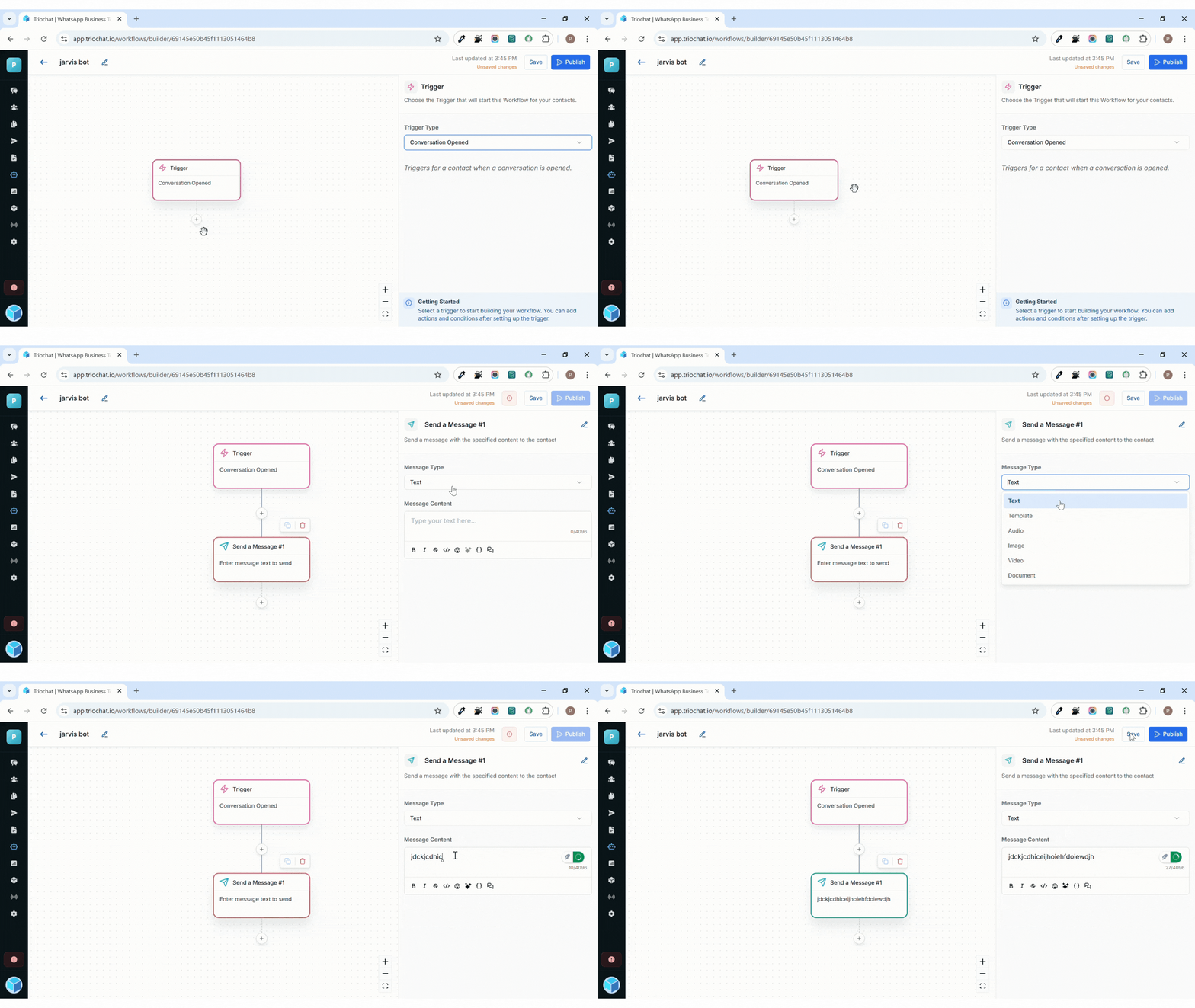
How to Add a “Send Message” Step in triochat.io
1. Open Your Chatbot Workflow
Select the workflow from your chatbot dashboard where you want to send a message.
This can be a new workflow or an existing one.
2. Click the Plus (+) Button
Inside the workflow builder, click on the + icon at the point where you want the message to be sent.
A list of available actions will appear.
3. Select “Send Message”
Choose Send Message from the actions list.
This opens the Send Message Panel, where you can customize the message type.
4. Choose Message Type
triochat.io supports multiple message formats to make your interactions more engaging:
- Text: Send plain messages, greetings, or quick information.
- Template: Use pre-approved WhatsApp templates for verified notifications or updates.
- Audio: Share voice messages or instructions.
- Image: Send product photos, banners, or visual guides.
- Video: Ideal for tutorials, demos, or promotional clips.
- Document: Share PDFs, invoices, brochures, or guides.
5. Add Your Message Content
After selecting the message type, enter or upload the content you want the chatbot to send.
Make sure the message is clear, relevant, and aligned with your workflow’s purpose.
6. Save the Message
Once your message is ready, click Save to finalize the setup.
This step will now be added to your workflow and will automatically execute based on your defined conditions.
Asking a Question in Your Workflow
Purpose of the “Ask a Question” Step
The Ask a Question action is used to collect information from users during a conversation.
It helps your chatbot gather data such as names, phone numbers, emails, or any other custom details that can later be used for personalization or automation.
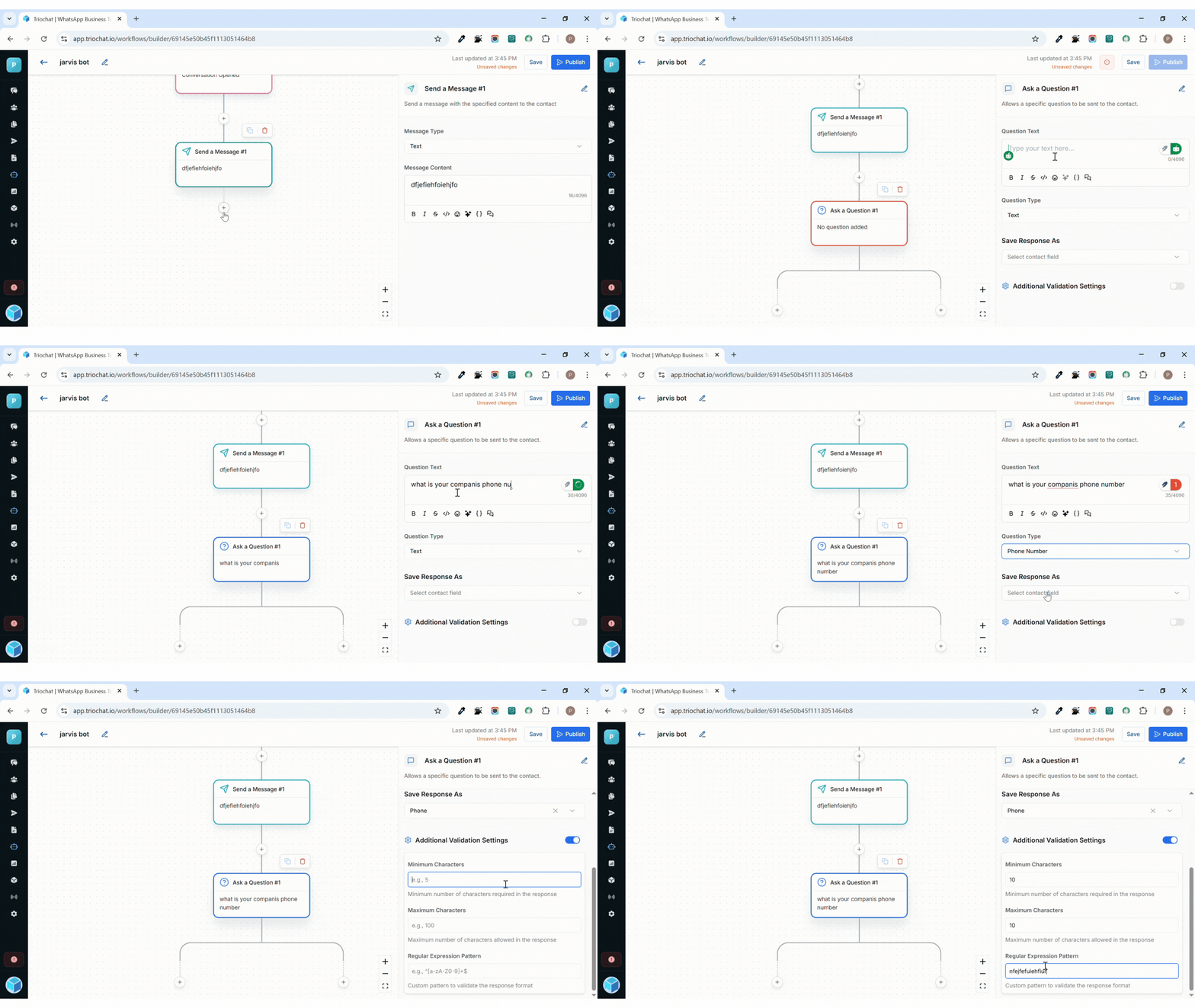
How to Add the “Ask a Question” Step in triochat.io
1. Open Your Workflow
Go to the workflow where you want to add a question.
You can place this step right after the Send Message action.
2. Click the Plus (+) Button
Inside the workflow builder, click on the + icon where you want to add the question.
From the action list, select Ask a Question.
3. Choose the Question Type
In the Ask a Question Panel, select the type of input you want to collect:
- Text: For open-ended answers like names or feedback.
- Number: For numeric inputs such as quantity or ID numbers.
- Phone Number: To collect valid contact numbers.
- Email: For user or business email addresses.
- Date: For appointments, birthdates, or schedules.
- URL: To accept website links.
- File: Allows users to upload images or documents.
4. Type Your Question Text
Enter the question you want the chatbot to ask, matching the input type you selected.
Keep the wording short and specific.
Examples:
- “What is your company's phone number?”
- “Upload your ID proof.”
5. Use Additional Validation Settings (Optional)
triochat.io allows you to validate responses to ensure correctness:
-
Minimum & Maximum Value or Length:
Useful for fixed-length inputs like a 10-digit phone number.
If users enter incorrect data, the chatbot marks it as failed. -
Regular Expression Pattern (Regex):
For advanced formatting requirements such as custom ID formats or strict validation rules.
6. Save Your Question
Once everything is configured, click Save.
Your chatbot will now ask this question during the conversation and automatically store the user’s response.
Was this page helpful?