Triochat Features
Assigning a Chat in Workflow
Copy page
Assigning a Chat in Your Workflow
Purpose of the “Assign To” Step
The Assign To action is used when a conversation needs to be redirected to a specific person, team, or system for handling.
It’s especially helpful when an Ask a Question step fails or when a user requires human assistance. This ensures that no chat gets stuck without a proper response.
How to Use the “Assign To” Option in triochat.io
1. Locate the Point of Assignment
After an Ask a Question step, if you want to handle failed responses or unanswered queries:
- Click the “+” icon in your workflow.
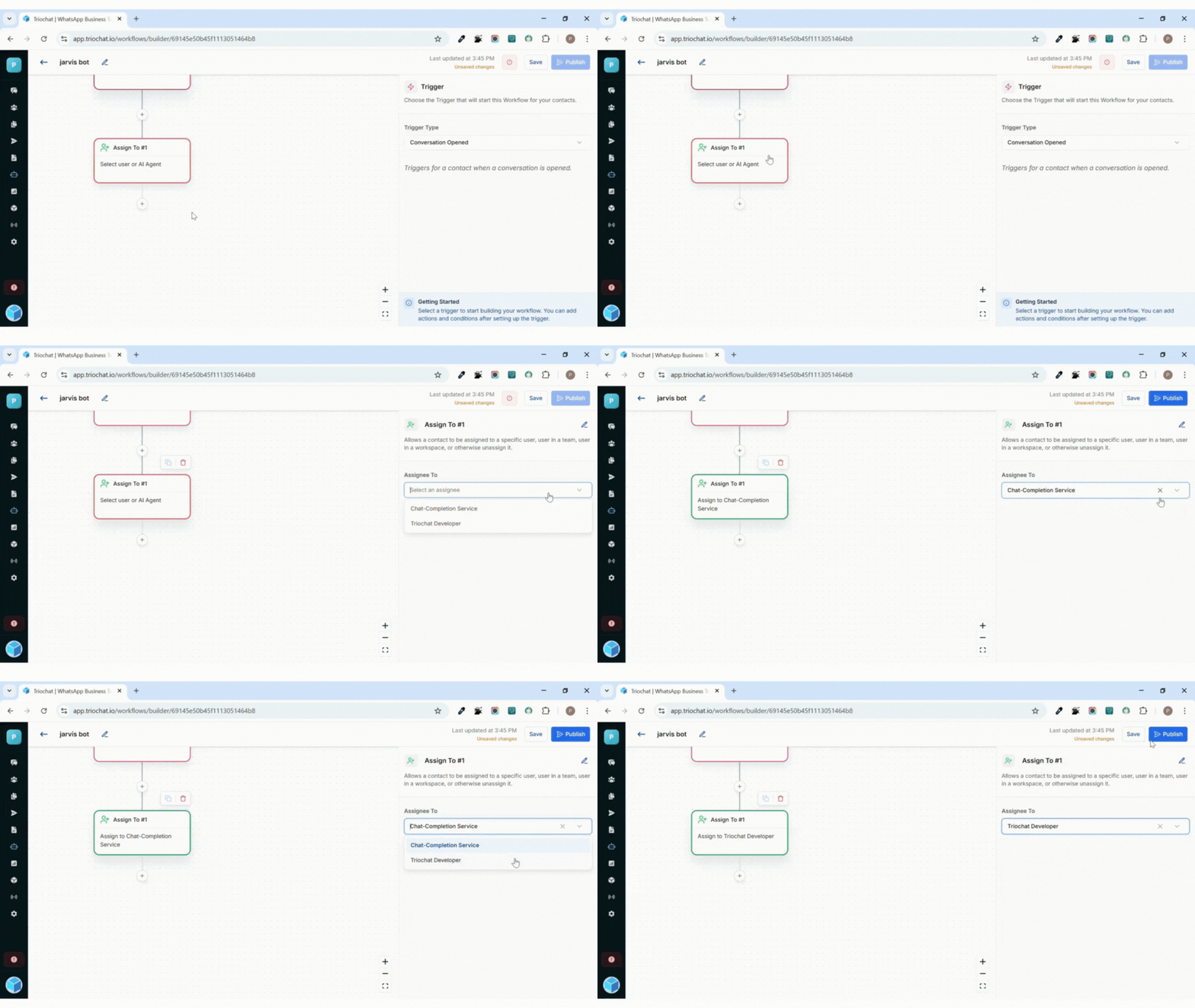
- From the list of options, select “Assign To.”
2. Choose the Assignment Type
The Assign To Panel allows you to decide how and to whom the chat should be assigned.
You can assign the conversation to:
- A specific user (an individual team member)
- A user in a team (any member in that team)
- A user in a workspace (across departments or groups)
- Unassign (release the chat back to the system)
3. Select the Assignee Option
Under the “Assignee To” dropdown, triochat.io provides two built-in options:
a. Chat Completion Service
- triochat.io’s built-in AI automatically takes over the conversation.
- It analyzes context and responds intelligently to user queries.
- Ideal for quick resolutions, FAQs, or after-hours support.
b. triochat.io Developer
- Assigns the chat to a manual responder (real person or support agent).
- The assigned user can view and reply from their dashboard.
- Best for complex issues, technical support, or escalations requiring human input.
4. Save the Assignment
After choosing the assignment type and assignee:
- Click Save to apply the settings.
The chat will now automatically transfer to the specified handler whenever the workflow reaches this step.
Was this page helpful?
On this page