Triochat Features
Branch in Workflow
Copy page
Branch in Chatbot Workflow
What Is a Branch?
A Branch in a chatbot workflow is used to divide a conversation into different paths based on conditions or user data.
It helps the chatbot make decisions and respond intelligently according to the situation.
Instead of sending the same response to everyone, you can set different replies for different users or scenarios.
In triochat.io, you can create up to 6 branches inside one workflow step, giving you enough flexibility to manage multiple outcomes in an organized way.
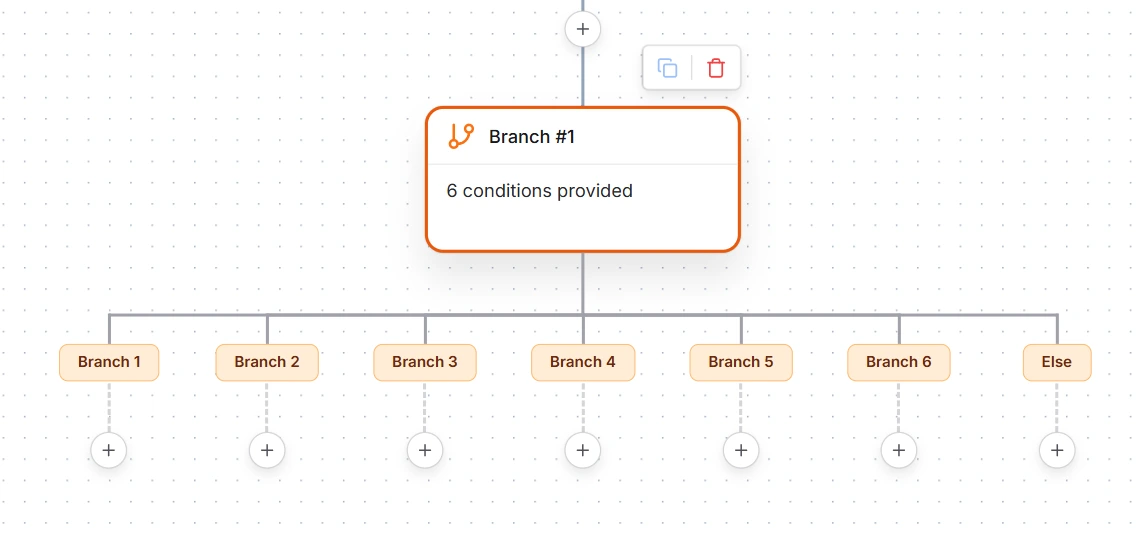
Selecting a Branch Category in triochat.io
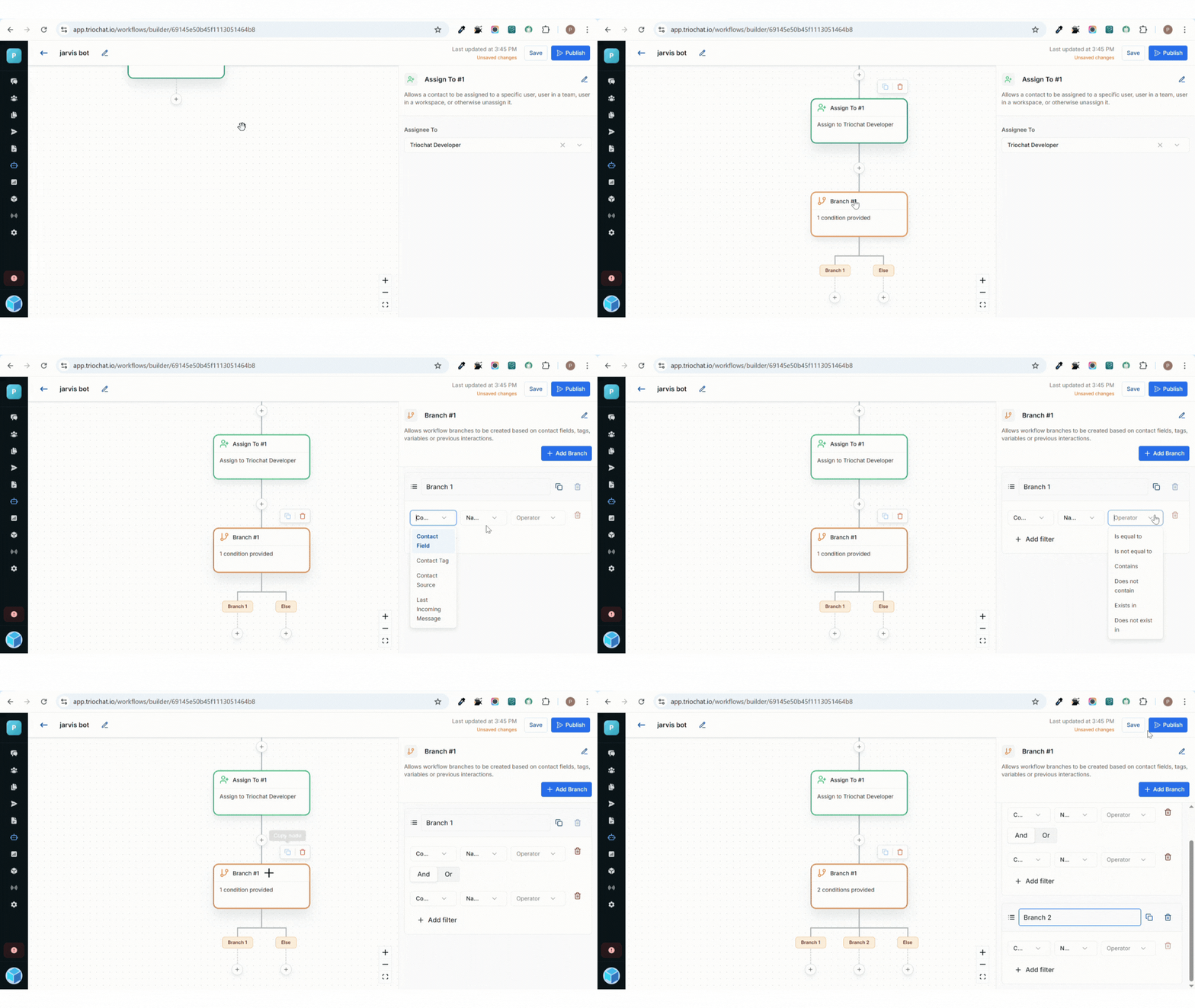
Each branch is based on a category, which defines what type of condition the chatbot will evaluate.
triochat.io supports four main branch categories:
1. Contact Tag
This category checks the tags assigned to a contact to decide which branch should activate.
Example:
- If a contact has the tag “New Lead”, the chatbot sends a welcome message.
- If the tag is “Existing Customer”, it sends loyalty rewards or account options.
Description:
Ideal for audience segmentation and personalized messaging based on user type or journey stage.
2. Contact Field
This category checks specific data fields in the contact's profile such as name, city, email, or any custom field.
Example:
- If the contact’s city is “Mumbai,” the chatbot sends location-based offers or support details.
Description:
Useful for data-driven automation where replies change based on stored customer information.
3. Contact Source
This category identifies how the contact entered your system — e.g., Facebook ad, website form, manual import, or API.
Example:
- If the contact source is “Website Form”, the chatbot sends a thank-you message for submitting the form.
Description:
Great for tracking lead origins and customizing follow-ups based on acquisition channels.
4. Last Incoming Message
This category checks the user’s latest message to determine their intent or keyword.
Example:
- If the last message contains the word “price”, the chatbot automatically shows pricing details.
Description:
Perfect for real-time conversational logic where replies depend on what the user just said.
Selecting a Branch Operator
After choosing a branch category, the next step is to define the operator — the condition logic that decides when a branch should activate.
triochat.io provides several operators to give you flexible control over chatbot automation.
1. Is Equal To
Activates the branch when the selected field or tag exactly matches a given value.
Example:
If Contact Tag is equal to “New Lead”, send a welcome message.
2. Is Not Equal To
Triggers when the value does NOT match the specified option.
Example:
If Contact Field “city” is not equal to “Delhi”, send a generic offer.
3. Contains
Checks whether a keyword or value is present inside a field or message.
Example:
If Last Incoming Message contains “price”, show pricing options.
4. Does Not Contain
Triggers when a keyword or value is NOT present in the selected field.
Example:
If Last Incoming Message does not contain “order”, guide the user to product options.
5. Exists In
Activates the branch when the value is found inside a list of predefined values.
Example:
If Contact Tag exists in [Premium, Gold, Platinum], send exclusive offers.
6. Does Not Exist In
Checks if the value is not part of a specific list and triggers when it's missing.
Example:
If Contact Tag does not exist in [Old Leads], send a re-engagement message.
Branch Cloning (Add Filter) in triochat.io
triochat.io makes managing multiple branches easier with its Add Filter option, which works like a branch cloning feature.
How It Works
- When you click Add Filter, triochat.io creates a duplicate (sibling) branch of the current one.
- The cloned branch includes the same category and condition settings as the original.
- You can then edit the cloned branch to change the operator, value, or logic as needed.
Purpose
The cloning feature helps you:
- Save time by reusing existing branch logic.
- Avoid creating every branch from scratch.
- Build workflows with multiple similar conditions that only require small variations.
It’s especially useful in larger automations where several branches share the same structure but differ in specific values or checks.
How Branch Works in a Workflow
Once a branch is added and configured in your workflow, the chatbot evaluates each branch condition one by one in the order they appear.
- If a condition matches, the chatbot follows that branch and executes the actions inside it.
- If no condition matches, the workflow can:
- Stop the flow, or
- Move to a default path, ensuring the user still receives a proper response.
This makes the chatbot behave dynamically, analyzing user data or incoming messages before choosing the best next step in the conversation.
Best Practices for Using Branches
Keep Conditions Simple
Avoid adding too many conditions within a single branch. Keeping logic simple improves workflow reliability and makes it easier to understand.
Always Add a Default Path
Always include a fallback path to ensure the chatbot continues smoothly even when no branch condition matches.
Name and Organize Clearly
Give each branch a clear and meaningful name (e.g., "New User Path", "Returning Customer Path") to keep workflows organized and easy to manage.
The Branch feature in triochat.io adds intelligence to your chatbot workflows. It helps you build personalized, context-aware conversations that feel natural and relevant to every user.
Was this page helpful?
On this page