Triochat Features
Introduction
Copy page
What Are triochat.io Chatbots?
triochat.io chatbots are intelligent virtual assistants built to simplify and automate customer interactions across messaging platforms. Designed for businesses of all sizes, these chatbots help manage conversations, respond instantly, and deliver personalized experiences without the need for constant human involvement.
With triochat.io, businesses can easily create, customize, and manage chatbots through an intuitive, no-code interface.

Why triochat.io Chatbots Are Game Changers
- Massive reach: triochat.io connects businesses with audiences directly through their favorite platforms, ensuring every message reaches customers where they are most active.
- High engagement: With automated yet personalized replies, triochat.io helps businesses maintain real-time conversations, boosting response rates and customer satisfaction.
- User-friendly interface: triochat.io’s simple workflow makes chatbot creation effortless, even for non-technical users.
- Instant setup: Businesses can go live within minutes using predefined templates, triggers, and automation tools built into triochat.io.
- Rich communication: triochat.io supports text, images, videos, documents, and other media formats, allowing brands to create more engaging and interactive chats.
- Smart automation: With AI-powered responses and contact management tools, triochat.io ensures every conversation feels human while saving valuable team time.
In short, triochat.io chatbots transform customer engagement by combining automation, personalization, and simplicity, making business communication faster, smarter, and more impactful.
Getting Started: Prerequisites
Before setting up your WhatsApp chatbot with triochat.io, a few essentials are required to ensure smooth integration and functioning.
1. WhatsApp Business API Access
The WhatsApp Business API is the core foundation for chatbot setup.
It allows businesses to send automated, secure, and verified messages at scale.
Access can be obtained either through Meta’s official process or directly via triochat.io onboarding support.
2. Verified WhatsApp Business Number
You need an active business phone number linked to your WhatsApp Business account.
The number must be verified by Meta to activate chatbot services.
Once verified, it can be used for automation, broadcasts, and customer communication.
3. triochat.io Account Login
A triochat.io login is required to build, manage, and monitor your chatbot.
Through your dashboard, you can design workflows, set triggers, and analyze conversation data.
Setting these prerequisites ensures that your chatbot setup process runs without interruptions and complies with WhatsApp’s business policies.
For more prerequisite details refer to this blog - https://triochat.io/blogs/guide/before-you-start-triochat.io/
How to Create a Chatbot on triochat.io
Setting up your first chatbot on triochat.io is quick and easy. Follow the steps below to get started.
Steps to Create a Chatbot
1. Open the triochat.io Dashboard
Log in to your triochat.io account using your registered credentials.
Once logged in, you’ll be directed to the main dashboard where all key tools and options are displayed.
2. Navigate to the Chatbot Section
On the right sidebar, you’ll find an icon shaped like a robot; this represents the Chatbot section.
Click on it to open the Chatbot Dashboard.
3. Create a New Chatbot
On the top-left corner, you’ll see a blue bar with the option “Create New Chatbot.”
Click on it to begin building your bot.
4. Enter Chatbot Details
Add a name for your chatbot; this is required for identification.
You can also write a short description (optional) to define its purpose or use case.
Once you’ve added the details, your new chatbot will be created and ready for customization.
This is where you can design workflows, add triggers, and shape how your bot interacts with users.
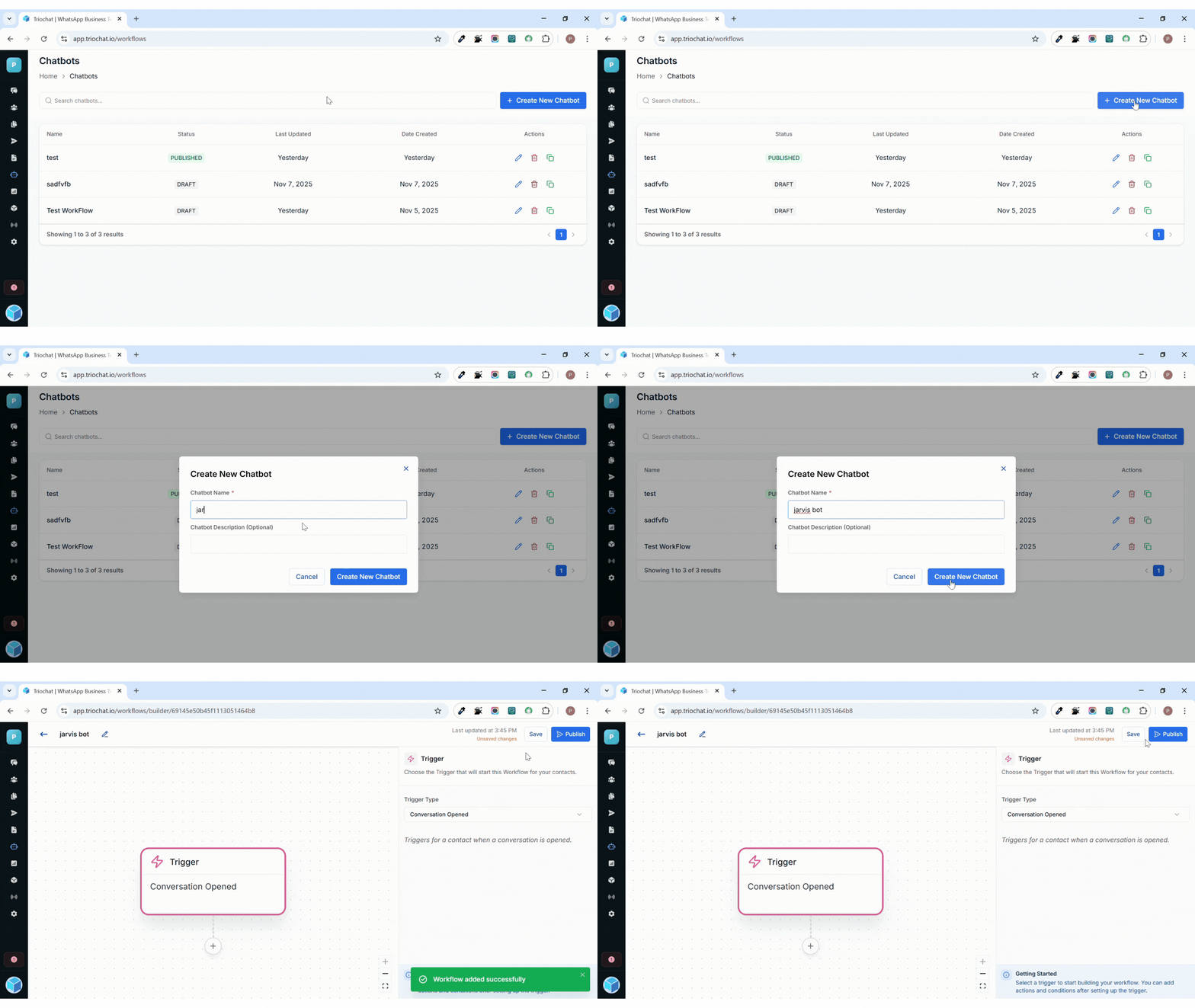
Overview of triochat.io Chatbot Creation Dashboard
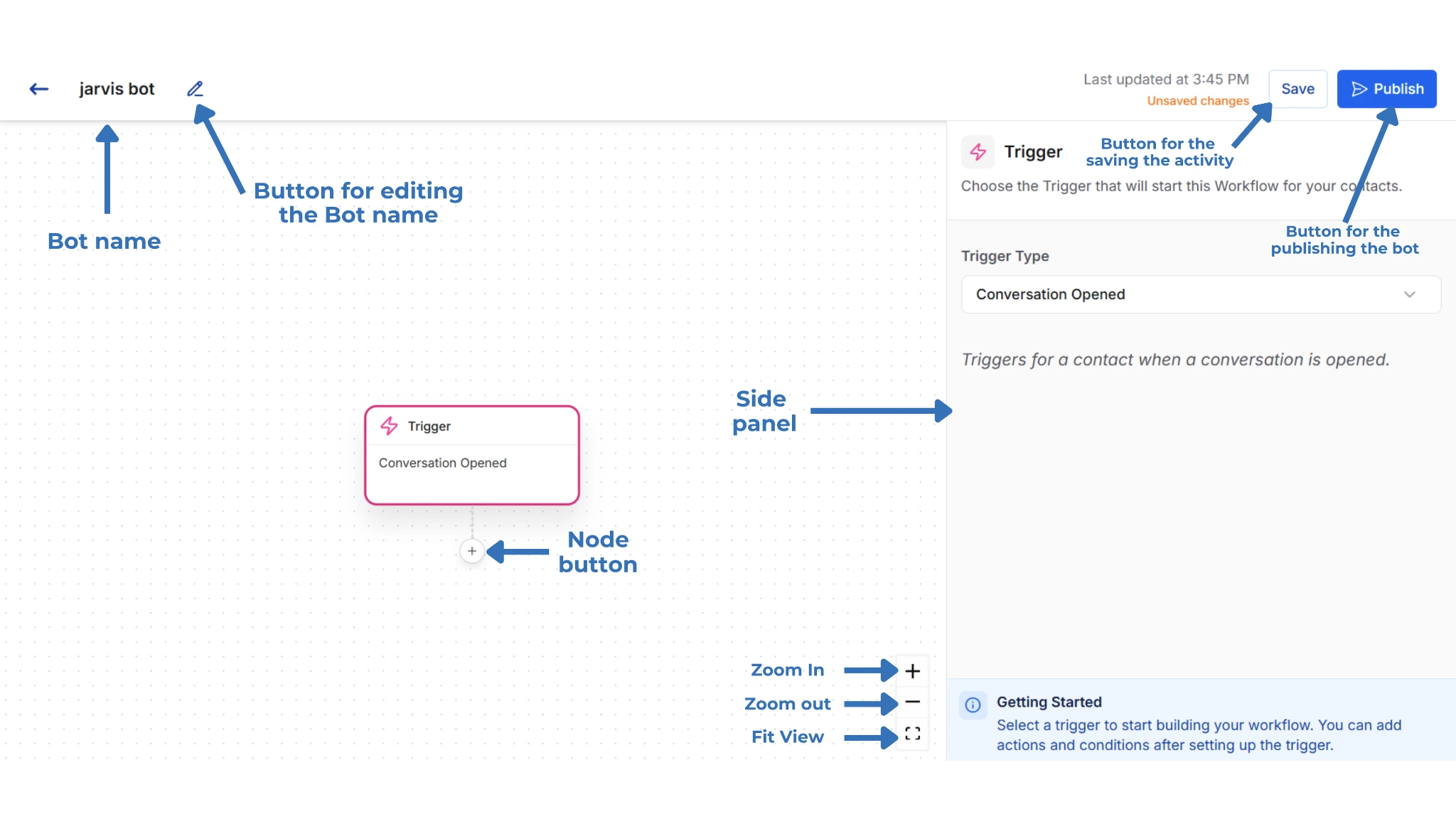
The image shows the triochat.io chatbot creation dashboard, highlighting key features and tools. It includes the bot name and an edit button to rename it. The right-side panel displays workflow settings like triggers. The “Save” and “Publish” buttons help store and deploy updates. The node button adds workflow actions, while zoom and fit view controls adjust the workspace view for smoother navigation and bot-building efficiency.
How to Trigger the Chatbot
What Is a Trigger?
A trigger is an action or event that activates your chatbot automatically. It defines when and how your chatbot should start interacting with a user.
In simple terms, triggers make your chatbot respond at the right moment—whether it’s when someone starts a chat, closes one, or when specific contact details change.
Trigger Types in triochat.io
triochat.io offers four main trigger types that help you control when your chatbot should respond or take action:
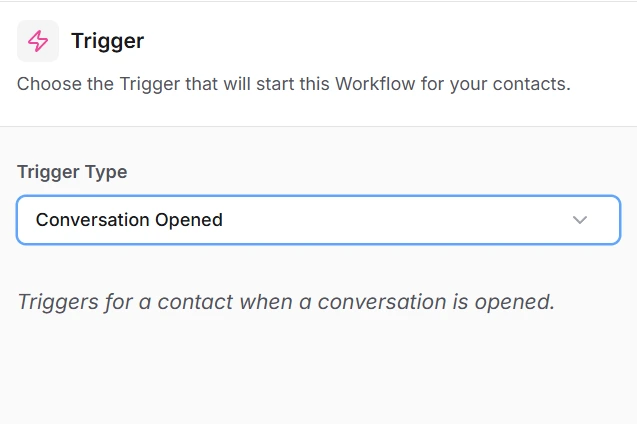
1. Conversation Opened
This trigger activates when a user initiates a chat with your WhatsApp number.
It’s ideal for sending a greeting message, welcome note, or an automated first response.
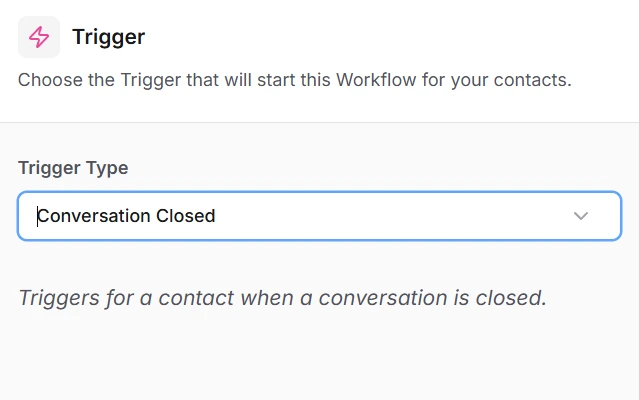
2. Conversation Closed
This trigger is activated when a chat session ends or is marked as closed.
It can be used to send follow-up messages, feedback forms, or thank-you notes.
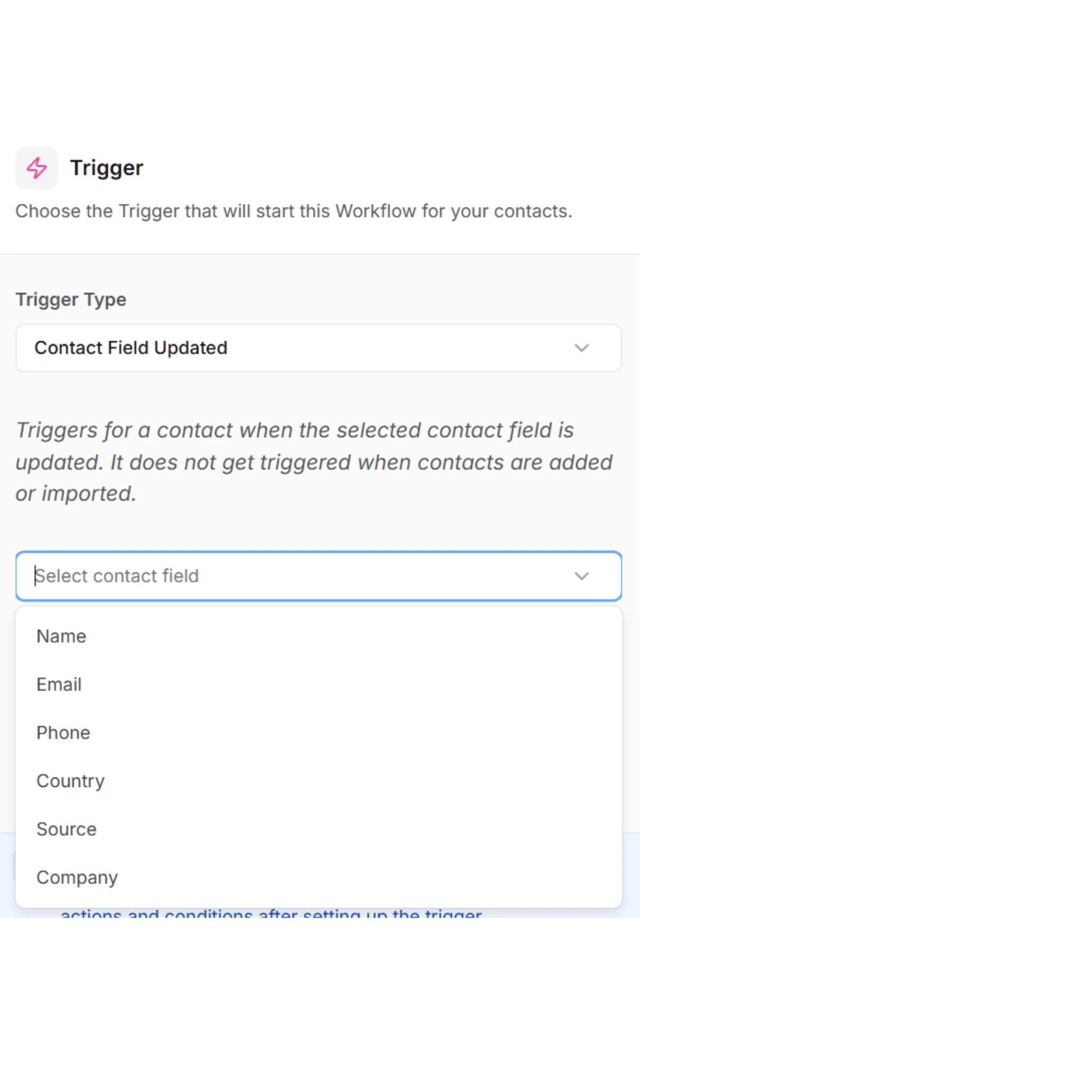
3. Contact Field Updated
This trigger activates when any saved contact field (such as name, email, or location) is updated.
Useful for automating updates, notifications, or personalized communication.
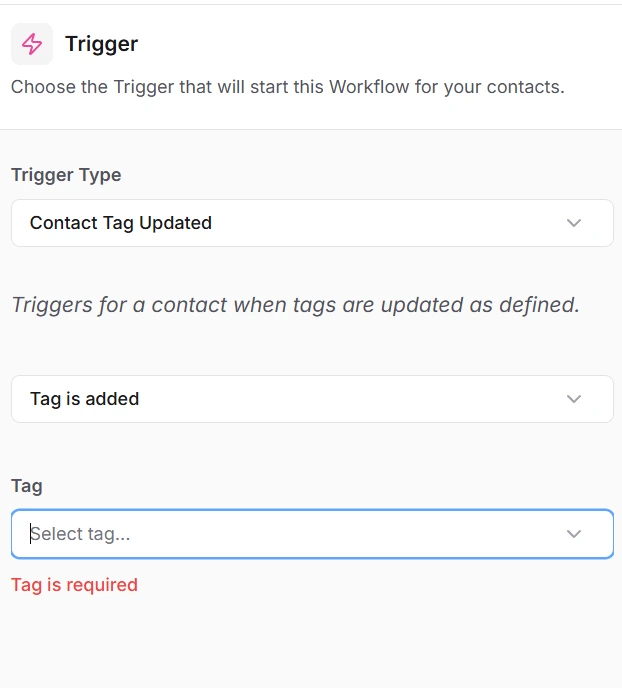
4. Contact Tag Updated
This trigger runs when a new tag is added or modified for a contact.
It’s commonly used for segmenting users and automating targeted messages or campaigns.
By setting the right triggers, you can ensure your chatbot responds automatically at key moments—saving time, improving engagement, and keeping communication consistent.
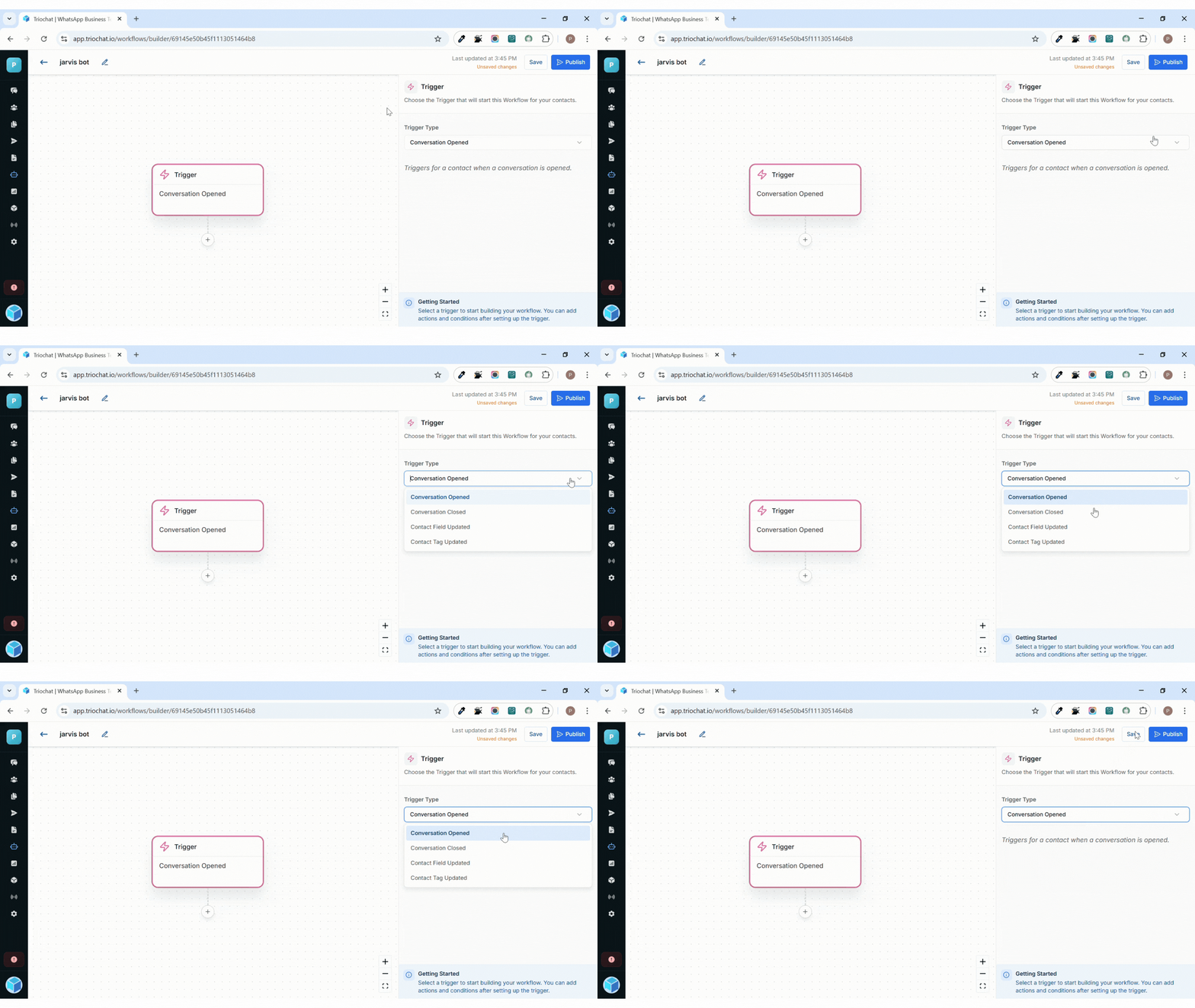
Trigger Types and Their Sources
Every trigger in triochat.io is linked to a specific source—the event or activity that starts the automation. Understanding these sources helps you control exactly when your chatbot takes action.
1. Conversation Opened
Definition:
This trigger activates when a customer starts a new chat with your WhatsApp Business number or sends a message after being inactive.
Source:
Incoming message from the user.
About the Source:
When a user sends a message to your business, the system detects it as a new or reopened conversation. The trigger instantly runs your predefined workflow—such as greeting the user, showing menu options, or collecting initial details. This enables instant responses without manual effort.
2. Conversation Closed
Definition:
This trigger works when a chat is marked as closed by an agent or when a session ends after inactivity.
Source:
Chat closure by agent or system timeout.
About the Source:
When a conversation is closed, the chatbot can automatically send a closing message, ask for feedback, or share a follow-up link. This keeps post-conversation engagement smooth and consistent, while reducing repetitive tasks for your team.
3. Contact Field Updated
Definition:
This trigger activates whenever any contact field—such as name, phone number, location, or a custom field—is modified or newly added.
Source:
Profile or CRM update.
About the Source:
Whenever a contact’s information is updated manually or through integrations (like CRM sync or Google Sheets), the trigger launches your workflow. You can use it to confirm updates, send personalized messages, or initiate follow-up actions automatically.
4. Contact Tag Updated
Definition:
This trigger runs when a tag is added, changed, or removed from a contact’s profile in triochat.io.
Source:
Tag assignment or modification in contact profile.
About the Source:
Tags help you categorize users based on behavior, interest, or status. When a tag changes, the chatbot can send targeted messages—for example, assigning a “VIP Customer” tag could trigger an exclusive offer. This enables smarter segmentation and more personalized automation.
Was this page helpful?
On this page